Overview
The Condr client renders the interface and handles interaction; terminal sessions, Agent processes and the window layout are all hosted by the background Server. Closing the window does not end running sessions.
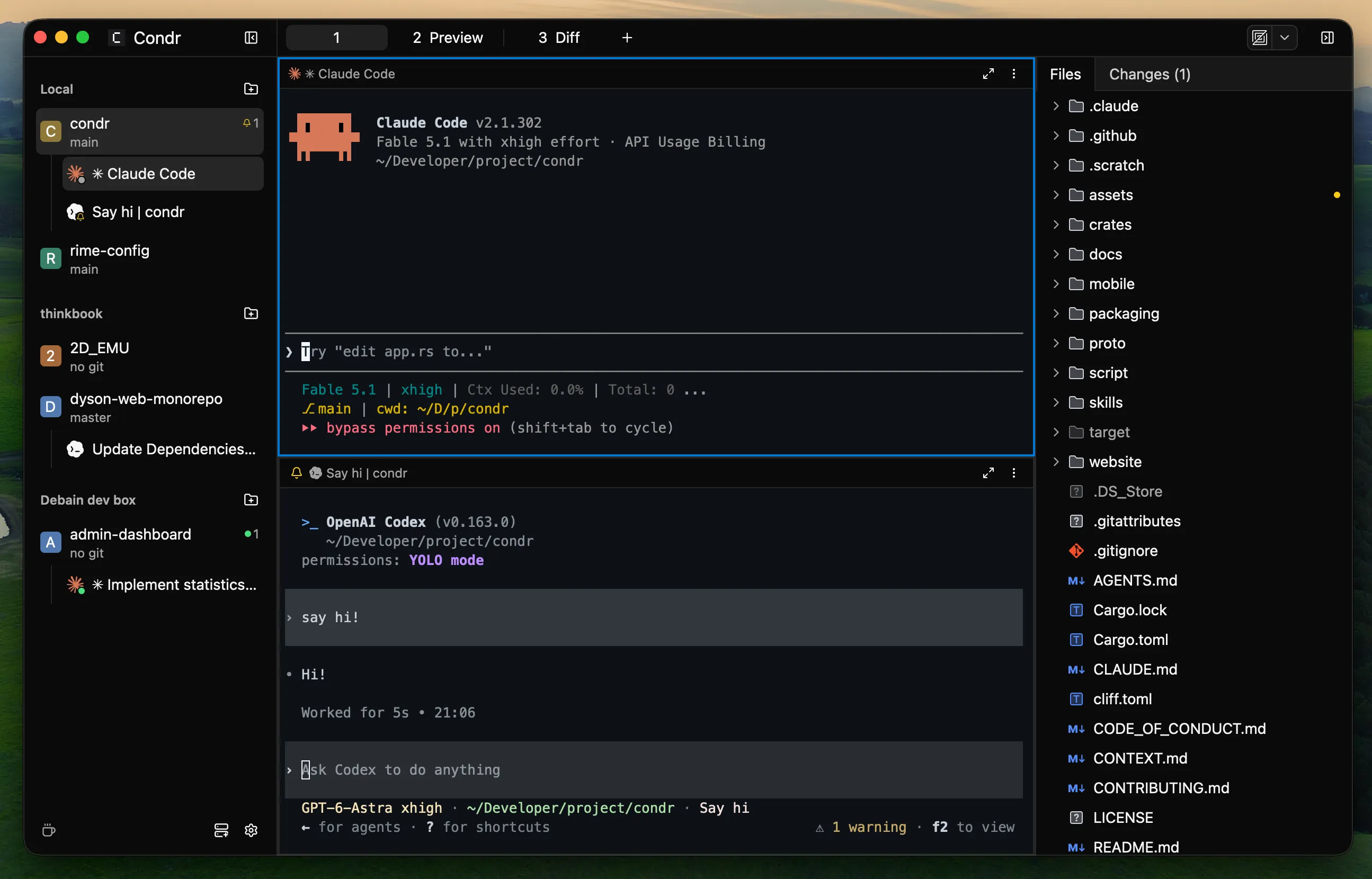
Window layout
Section titled “Window layout”The Condr interface has four areas:
Title bar
Section titled “Title bar”| Control / state | Description |
|---|---|
| Sidebar toggle | Collapses or expands the left sidebar. Collapsed, it keeps only the Workspace initial icons. |
| Tab bar | Shows every Tab in the current Workspace. Click + to start a new shell in the current Pane’s directory. |
| Open in | Opens the project root in an external editor or file manager (local Devices only; remembers each project’s choice). |
| Right sidebar toggle | Shows or hides the right sidebar; the state is kept per Workspace. |
Left sidebar
Section titled “Left sidebar”Manages Devices, project Workspaces and Agent state. Drag Devices or Workspaces to reorder them.
- Needs you: the list of things waiting for you. It appears at the top when an Agent needs confirmation or input; click a row to jump to its Pane.
- Devices and connections:
- Device groups: Workspaces are grouped by Device (the local one shows as
Local). The context menu connects and disconnects, and edits or deletes a remote Device. - Status icons: 🔴 red means not connected (click to reconnect); ⚠️ an amber triangle means the Device runs a different Condr version from this window.
- Connect Remote Device: at the bottom; connects a remote Device over SSH, TCP or P2P.
- Device groups: Workspaces are grouped by Device (the local one shows as
- Workspaces:
- Show the project icon, name and Git branch (
no gitoutside a repository). - Status: when the branch is ahead of or behind upstream, the commit counts show as
↑N ↓N. - Context menu: rename, create a Git worktree or close the Workspace.
- Show the project icon, name and Git branch (
- Agent rows: every Agent listed under its Workspace, with a badge on its icon for its live state.
- Utilities:
- Coffee cup at the bottom: keeps the screen awake with one click.
- Gear at the bottom: Settings (a red dot appears when a new version is available).
Main area (Tabs and Panes)
Section titled “Main area (Tabs and Panes)”- Terminal Tabs: each Tab holds a set of split Panes. Tabs are numbered and a shortcut jumps straight to each.
- Review Tabs (Diff / Preview):
- Opened by clicking a file in the right sidebar, to compare changes or preview source.
- Each Workspace has at most one of each, reused for the next file so Tabs do not pile up.
- Pane controls:
- Title bar: shows the Agent mark, the terminal title and the zoom / restore button.
- ⋮ menu: split, swap, zoom and close.
- Rearranging: drag a Pane’s title bar onto the center of another Pane to swap them, or onto an edge to split and dock there; drag the divider between Panes to resize them.
Right sidebar
Section titled “Right sidebar”- Files (project tree): browse the project’s directories. Folders with changes carry a dot, and files ignored through
.gitignoreare greyed out. Click a file to view it in the Preview Tab. - Changes: active in Git repositories only. Lists changed files with added and removed lines, grouped as
Conflicts,TrackedandUntracked. Click a file to review it in the Diff Tab. - Context menu: copy the relative or absolute path, insert the path into the terminal, or open the file in a local editor.
Agent state indicators
Section titled “Agent state indicators”Agent state shows in the badges in the left sidebar, the Workspace counters and the Needs you list.
| State | Meaning |
|---|---|
| Working | Running a task (thinking, generating text or calling tools). |
| Blocked | Waiting for your input or approval (listed in Needs you). |
| Error | The turn failed and the Agent halted (listed in Needs you with the reason). |
| Done | Finished in the background. Resets to Idle once focus returns to its Pane. |
| Idle | Idle: the turn is over and it waits for the next instruction. |
| Unknown | A plain shell session, or an Agent that has not reported. |
| Bell | The terminal rang its bell (Bell takes priority over the regular lifecycle states). |
Tip: when an Agent in the background finishes, fails or becomes blocked, Condr sends a native system notification; clicking it goes straight to that Pane. To turn on state tracking, see Agent integrations.
Welcome page
Section titled “Welcome page”Shown when a Device is connected but no Workspace is open yet, with Open Project and Connect Remote Device as shortcuts.
Connection status
Section titled “Connection status”- With no Workspace loaded: the connection steps, troubleshooting advice and a retry button show in the centre.
- With a Workspace loaded: a status bar shows at the top of the Panes, hidden for the first 2 seconds of a reconnect.
- While disconnected: the Server keeps working in the background, and the window picks up its context and output once the network is back.
Command line (CLI)
Section titled “Command line (CLI)”The condr command line exposes most of the window’s features, for script automation and for Agents to call as a tool:
| Command group | Operates on |
|---|---|
condr workspace |
Workspace lifecycle: create, rename, focus, list or close. |
condr tab |
Tabs: create, rename, switch and close. |
condr pane (layout) |
Split, move, swap, resize and focus. |
condr pane (I/O) |
Send keys or commands, and capture and read a Pane’s output. |
condr agent |
Find available Agents, install hooks, start an Agent in a Pane, send prompts and wait for the result. |
condr device |
List saved remote Devices and whether they are reachable. |
condr server |
Manage the local Server process (start, restart, pairing). |
Scope rules
Section titled “Scope rules”- Inside a Pane’s terminal: bound to the current Workspace, Tab and Pane by default, with no context IDs needed.
- In a system terminal: connects straight to the local Server and needs the target IDs passed explicitly.
- Remote operation: add
--device <device name>(host-level commands such asserverandagent hooksrun locally only).
Suggested reading path
Section titled “Suggested reading path”On first use, set up your workflow in this order:
- Environment and layout: read Workspaces, Tabs and Panes to learn splits and isolated development with worktrees.
- Bring in Agents: see Agent integrations and install hooks to turn on state sync.
- Files and code review: see Changes and file preview for incremental review and diffs.
- Going further:
- For remote development, see Remote connections (SSH / TCP / P2P).
- For multi-Agent collaboration, see Agent automation.
- For everyday shortcuts and external editors, see Shortcuts and preferences.